Pages

Showing posts with label Electronics Care Info. Show all posts

Saturday, 9 June 2012

How to Buy a Point-and-Shoot Digital Camera

How to Buy a Point-and-Shoot Digital Camera


By far the largest segment of the digital camera market, point-and-shoot models are compact, easy to use, and typically take great pictures with minimal effort. You simply press the shutter button, and the camera automatically adjusts shutter speed, aperture, focus, and light sensitivity to capture a clear image with optimal color. Unlike Digital SLRs which offer larger image sensors, more manual control and interchangeable lenses, point-and-shoot cameras can often slip into a pocket, and are typically less expensive.

Deciding to buy a point-and-shoot camera is the simple part, but with hundreds of models with varying price points and feature sets to choose from, selecting the best one is no easy feat. Follow these rules to find the right compact digital camera.

Rule #1: There's More to a Photo Than Megapixels

"That camera looks great, how many megapixels does it have?" This is a question I've heard time and time again, but the truth is that more megapixels don't make for better photos. A decade ago, when cameras were making the jump from 2-3 megapixels to 4-5, it was a matter of discussion. But now, with point-and-shoots starting in the 10-megapixel range and climbing as high as 16 megapixels, it's a moot point. Very few of us are going to make prints large enough to take advantage of all those extra pixels.

Sensor size is much more important. Putting too many pixels on the smaller image sensors (which are generally 1/2.3" when measured diagonally) found in compact cameras, can actually hurt camera a camera's low-light shooting performance. These sensors are much smaller than those found in D-SLRs, which can make color gradations less smooth, and make it more difficult to create a shallow depth of field. But the advantage is the ability to put lenses with longer zoom factors in compact packages—you can find a camera with a 20x lens that can fit into your shirt pocket like the Canon SX260 HS, something that no D-SLR can match.

Some compact cameras have larger image sensors, in the 1/1.7" range, but these are usually aimed at enthusiasts and are priced accordingly. If top-notch image quality in a compact package is an absolute need, no matter the cost, consider one of these larger-sensor compacts like our high-end Editors' Choice, the Canon PowerShot S100. These cameras can't match the long zoom range of compacts with smaller sensors, but generally perform better in low light. You won't be able to blur the background like you can with a D-SLR unless you're focusing on an object only a few inches from the lens, but larger sensors generally produce images with a bit more depth than their smaller counterparts.

Rule #2: Pay Attention to Lens Focal Length, Not Just Zoom Factor

The zoom range of a camera is often highlighted in marketing material, but that "x" number, which expresses how far a camera's lens reaches, doesn't tell you the full story. The focal length range, which is generally expressed as a 35mm equivalent value, tells you more about the field of view that the camera can cover. For example, two cameras may both have 5x lenses, but if one covers 24-120mm, like the Canon PowerShot Elph 110 HS, and the other 28-140m, like the Nikon Coolpix AW100, the former will be better suited for shooting in tight spaces while the latter will have a longer telephoto reach. Better point-and-shoots start at around 28mm these days, which is a nice wide angle that is well suited for shooting in tight spaces. Budget cameras often start around 35mm, which is less useful for family snapshots, as it will be harder to frame photos with multiple people in smaller spaces.

Rule #3: Weigh Size Versus Features

You can get a truly capable point-and-shoot camera that's downright tiny, but it will likely lack a long zoom lens and other advanced features, to keep it slim. And it might come with harder-to-manipulate controls, especially if you have larger hands (smaller cameras mean smaller buttons and dials). If you can, get your hands on a camera before you buy, it's the best way to see which models feel best.

If you're happy with a moderately long zoom and you don't need, say, an articulating LCD, an ultracompact model like our midrange Editors' Choice, the 8x Canon PowerShot Elph 310 HS (Best Deal: $259.00 at BUYDIG.com) is a very capable camera that takes beautiful photos and will slide into even a tight pocket. Cameras that add more advanced functionality, like the Wi-Fi capable Samsung WB150F (Best Deal: $316.00 at BUYDIG.com) or the ruggedized Olympus Tough TG-310 (Best Deal: $132.99 at Amazon Marketplace) will generally be a little bit bigger. And if you want a camera with an extremely long zoom range, like the 35x-equipped Canon PowerShot SX40 HS, you'll be nearing the size of a small D-SLR.

Rule #4: When it Comes to LCDs, Display Resolution is as Important as Size

Because you'll be using your camera's rear LCD to frame and review photos and videos, its quality is paramount. You should look for a camera with at least a 2.5-inch display, although 3 inches is preferable. Camera LCDs are generally measured in dots, with larger values representing sharper displays. A 230k-dot display is just passable in terms of sharpness for a standard 3-inch screen. You'll be able to see fine detail in your shots and enjoy better outdoor performance with a camera with a bright 460k or 921k LCD. Larger point-and-shoots, like the Panasonic Lumix DMC-FZ150, sometimes include articulating screens, which can rotate a full 360 degrees, allowing you to shoot from more interesting angles.

You can also get a point-and-shoot with a touch-screen interface. These models allow you to adjust camera settings and fire the shutter by tapping the rear screen, eliminating traditional physical control buttons. The main advantage is the ability to put a larger screen on the rear of the camera—the Canon PowerShot 510 HS (Best Deal: $199.95 at PCConnection Express) has a 3.2-inch display. If you're the type who wants to fiddle with manual controls, a touch-screen camera might not be a good choice, as it takes longer to change settings when compared to button-based commands. But if you want to happily shoot in automatic mode, the touch interface could be an appealing choice.

Rule #5: Good Low-Light Performance Lessens the Need for Flash

We test the high-ISO performance of every camera that comes through the PCMag Labs. Basically, ISO is a measure of the camera's sensitivity to light. The higher the setting, the more light the sensor collects. A camera that is set to ISO 100 will capture the same amount of light with a one-second exposure as it will with a half-second exposure at ISO 200. Getting a camera that performs well at higher ISO settings will make it possible to snap blur-free photos in lower light. Almost every compact camera has a built-in flash, but there are certain situations where it doesn't make sense to use it. Because the surface area of the flash is much smaller than that of a professional light, it's better to let the camera use it to fill in shadows rather than provide the entire illumination for a scene.

As you increase the ISO, image noise increases as well—and too much noise makes for grainy, blotchy photos. A camera that performs better at high ISO values—you should look for one that keeps noise under 1.5 percent at ISO 800—can use a lower powered flash to grab sharp photos, without creating a washed-out look. It's important to check reviews to see how cameras actually perform at these higher settings, as one camera may produce much better images at ISO 1600 than another. A few point and shoots are really masters of low light—the Olympus XZ-1 (Best Deal: $399.00 at Amazon Marketplace) has an extremely fast f/1.8-2.5 lens that can snap clean images through ISO 1600.

Rule #6: Image Stabilization is a Must
Optical image stabilization, which compensates for the shakiness of your hands when taking a photo, is a must in a point-and-shoot camera, unless you plan on shooting on a tripod all the time. Nowadays, almost every midrange and high-end point-and-shoot includes this feature, but if you're trying to find a camera in the $100 range, it's something you should definitely check for. Our roundup of the best budget cameras is a good place to start.

Rule #7: Go for HD Video

Almost every point-and-shoot on the market will capture video, but you should set your sights on one that can record in HD. Don't get hung up on full 1080p resolution, a compact that records in 720p is more than capable of capturing video destined for online sharing. Most models that record HD video also feature a micro or mini HDMI output port to the camera connect to your HDTV for hi-def image and video playback; if you have a large screen HDTV, this is where you might benefit from the higher video resolution.

As far as recording the video, you'll want to check and see if the camera can zoom while recording, but be aware that the sound of the lens zooming is often picked up by the camera's mic. Some larger point-and-shoots will have an external mic port, making them better suited for more serious video work.

Rule #8: Get Last Year's Camera for Less

Point-and-shoot models are generally refreshed yearly, and improvements are usually incremental rather than dramatic. You can save a bundle by going for a year-old model, without sacrificing much in terms of functionality. For example, our Editors' Choice for high-end compacts was the Canon PowerShot S95 (Best Deal: $379.99 at lgeoo) until its successor, the S100, came to market and stole its crown. If you're able to live without the features new to the S100, you can find the S95 for sale at a full $100 off its original $400 sticker price. Likewise, the predecessor to our Editors' Choice superzoom, the Nikon Coolpix S9100, a $330 camera, is the Coolpix S8100. It doesn't feature quite as long a zoom lens, but can be found online for as little as $130—which is an excellent value in our book.

Finally, before you settle on your perfect shooter, read our recent point-and-shoot camera reviews, and check out The 10 Best Digital Cameras for the top point-and-shoot cameras we've tested.

10 Photography Tips for Beginners

10 Photography Tips for Beginners


 Digital photography has democratized the medium. More people are taking more photos than ever before, and they're sharing them online with friends and family in record numbers. It's easy to place the blame on the camera if your images aren't as nice as some others you see online, but by following a few guidelines you can improve the quality of your photos—without having to shell out big bucks for a new camera. Keep these 10 easy tips in mind next time you head out to capture the world around you. And if you have any tips that have helped you take better pictures, please share them in the comments section.

1. Get Basic Composition Down
. The heart of a photograph is its composition—the position of different elements in a frame. The easiest rule of thumb to learn and remember is the Rule of Thirds. Basically, you'll want to break your frame into nine squares of roughly equal size. Try and align the subject of your photo along these lines and intersections and imagine the main image divided over these nine boxes. This gives you a more dramatic, visually interesting shot than one where you subject is located dead center. Many newer cameras have a rule of thirds grid overlay that you can activate when shooting.

2. Adjust Exposure Compensation.
As long as you aren't shooting in full manual mode, your digital camera is making decisions that determine the exposure of a photo—in English, how light or dark the shot appears. Generally speaking, a camera looks at a scene and tries to determine the appropriate exposure based on the correct lighting of an 18-percent gray card, which is why there are special scene modes for snow—without them, the camera would try to make the white snow gray.

If a photo is too light or dark you can either delve through the dozens of scene modes that are available in modern point-and-shoot cameras, or simply dial in a bit of exposure compensation. Many cameras have a physical button for this, identified by a +/- symbol. If your photo is too dark, move the scale up above zero; if too light, move it down a bit.

3. Choose the Right Mode.
Your camera is likely to have scores of shooting modes, ranging from fully automatic operation to very specific scene modes. If you're shooting fast action you can put the camera into Shutter Priority ("S") mode and increase the speed at which a photo is taken—setting it to 1/125 second or faster will help to freeze action. In lower light you can use Aperture Priority ("A") mode to make sure as much light is entering the lens as possible, or if you're shooting landscapes on a tripod you can close the lens's iris to increase depth of field, keeping everything in sharp focus from the foreground to the horizon. If you're a D-SLR shooter, you're more likely to use the A or S modes, while point-and-shoot cameras will often feature more specific modes that cater to activities like sports, low-light use, or landscape shooting.

4. Watch Your White Balance. Your camera will try and set white balance automatically based on the type of light in which's you're shooting. Different light casts different types of color—sunlight is very blue, tungsten lighting is yellow, and fluorescent is a bit green. In many cases, the camera will automatically detect what type of lighting you're under and adjust the color in photos so that they look natural. If you're shooting under mixed lighting, or if the camera is just having a hard time figuring things out, you can set the white balance manually. On most point and shoots you'll have to dive into the shooting menu to adjust this, but many D-SLRs have a dedicated White Balance button, often labeled "WB." You can correct color in iPhoto or Picasa later on, but you'll get better-looking photos if you get the white balance right in the first place.

 
5. Think About Lighting. Pay attention to how much light you have and where it's coming from when taking your photos. If you're shooting outdoors, be careful not to take photos of a person when the sun is at their back. If you're grabbing a photo in front of a monument or landmark and don't have the flexibility to adjust your position you can use the camera's flash to fill in shadows. You may have to manually activate the flash, as there's a good chance that the camera will think that it's unnecessary on a bright day.
6. Use Your Flash Wisely. Many a photo has been foiled by a flash firing too close to a subject. If your friends and family look like Casper the Friendly Ghost when you photograph them, chances are that you're too close when snapping your photos. If you need to activate the flash, back up a bit and zoom in to get the proper framing. If things are still to bright—or too dark—check and see if flash compensation is an option. Many cameras allow you to adjust the power of the flash, which can help to add better balance to your flash-assisted photos. Adding just a little bit of light makes it possible to fill in shadows, resulting in a more natural-looking photo.

7. Add a Flash Diffuser.
If dialing down flash power isn't an option, you can also add a diffuser to help spread the light out. Smaller flashes aren't able spread light across a large surface area, giving your subjects a deer-in-the-headlights look. Point-and-shoot users can tape a bit of wax paper over the flash to soften its output. D-SLR users are best served by using an empty 35mm film canister—the milky variety used by Kodak—with a bit cut out so that it fits snugly over the flash. Photojojo has a tutorial that will walk you through the steps. If you don't have any film canisters lying around, try asking at your local drug store or department store minilab—they're bound to have dozens sitting in a drawer, and will gladly part with one. If making your own diffuser doesn't sound like your cup of tea, consider the Gary Fong Puffer, a $22 accessory that will look a bit more professional when mounted on your camera.

8. Use a Tripod or Monopod
. Sometimes, the best way to get your shot perfect is to take some extra time. Using a tripod will allow you to set up framing, and can come in handy—along with your camera's self-timer—for getting that shot of you and the kids in front of Mount Rushmore. You can get away with an inexpensive tripod if you're a point-and-shoot user, although spending a bit more on a brand like Manfrotto or Gitzo will result in much less frustration than with the bargain brands that you'll find at the local five and dime. D-SLR users should definitely put care into selecting a tripod, as a set of legs and a head that are sturdy enough to hold the camera are paramount.

If you're more of a run-and-gun shooter, a monopod—which is just like it sounds, a tripod with two of its legs missing—will help you stabilize your shots. Great for use at zoos and sporting events, a monopod is supplemented by your two legs in order to add stability to your camera—without the sometimes-cumbersome setup and breakdown required with a good tripod.

9. Be Selective.
It's easy to take hundreds of photos in a few hours when shooting digitally. But don't just dump your memory card and upload all of the images to Facebook. You should spend some time going through your photos so you can eliminate redundant shots and discard photos that may be out of focus or poorly composed. It's better to post a few dozen great photos by themselves rather than the same good photos hiding among hundreds of not-so-good ones.

10. Don't Forget to Post-Process.
Consider using a program like Picasa or iPhoto to organize your photos. Either will allow you to crop, color-correct, adjust exposure, remove red-eye, and perform other basic editing tasks. Performing some very basic editing on a photo can help improve its quality drastically. Cropping a bit can help with composition, and you can also rotate a photo so that horizon lines are straight. Getting your photos right in-camera is the larger goal, but there's no harm in a bit of retouching.

If you are in the market for a new camera, check out the Digital Cameras Product Guide for the latest reviews, and The 10 Best Digital Cameras, for the top cameras we've tested.

How to Buy an HDTV

How to Buy an HDTV

 Whether you're looking for a very basic low-cost set or a feature-packed, razor-thin model with 3D, selecting the right HDTV isn't easy. There are plenty of questions to answer: What type of display should you get? Plasma, LCD, or LED? How big should the screen be? How about resolution, refresh rate, and other specs? What sort of extras do you need?

Understanding the basics will help you make your choice (and your video) crystal clear, so here's what you should consider when shopping for your next HDTV.

Plasma or LCD? And What About LED?

Plasma TVs were the only flat-panel models available when they were first introduced more than a decade ago. But given the remarkable rise in the popularity of LCD TVs in the past couple of years, many manufacturers have stopped making plasma sets, while the remaining players—LG, Panasonic, and Samsung—are shifting toward producing larger screen sizes and plasma-based 3D TVs.

The popularity of LCD TVs can be attributed to some of the technology's inherent advantages over plasma, including a wider range of screen sizes, a very bright picture, and better energy efficiency. And LED-backlit LCDs offer even greater energy efficiency and are often thinner than CCFL-based LCDs, especially edge-lit LED models. But LED-based sets can suffer from some picture uniformity issues like 'blooming', where lighter parts of the picture bleed into darker ones, reducing overall black levels.

Plasma's strengths include its very dark blacks, and overall picture consistency, which (unlike CCFL or LED) doesn't exhibit color shifts, loss of saturation, or reduced contrast when viewed at wider angles. With plasma you don't need to be front and center to have the best seat in the house. And a plasma's fast-pulsing pixels are inherently well-suited for minimizing detail loss in fast motion like action films or live sports. Also, plasma can give you good bang for your buck if you want a really big screen.

For a closer look at the difference between HDTV display types, read Plasma vs. LCD vs. LED: Which HDTV Type is Best?

Choose Your Resolution

1080p resolution (1,920 by 1,080 pixels, progressively scanned) remains the pinnacle for consumer home-theater material, and all other things being equal, you want the screen resolution of your HDTV to match this format in order to provide the most detailed picture possible. But many factors affect the perception of picture detail, including distance, the quality of your eyesight, and the quality of the video material. At a viewing distance of 12 feet, it would be difficult to distinguish between a 720p and a 1080p display showing the same 1080p video (like a Blu-ray movie) if you have 20/20 vision. 1080p is most critical with bigger screen sizes, where larger numbers of smaller pixels create a more seamless image. It's less important for screens smaller than 40 inches, since you'd have to sit very close in order to notice the additional details. These days, though, 1080p sets are becoming the norm and no longer command premium prices. If you can afford 1080p, go for it.

Refresh Rate and Contrast Ratio

One of the biggest problems with narrowing your choices to a single HDTV is the sheer number of specs. To make your job a little easier, two of the biggies, refresh rate and contrast ratio, are safe to ignore.

Refresh (or response) rate, the speed at which your TV's panel refreshes its image, is expressed in hertz (60Hz, 120Hz, 240Hz, 480Hz, or 600Hz). The theory is that the a faster refresh rate results in a smoother image. But in reality, there are several reasons this simply isn't true, and it's not worth paying more for a set with a faster response rate. In many cases, 60Hz will do just fine.

Contrast ratio is the difference between the darkest black and the brightest white a panel can display. In theory, the highest contrast ratio possible is desirable since dark blacks and bright whites contribute to a high-quality picture. There isn't a standardized way of measuring this spec, though, so Samsung's numbers aren't comparable with, say, Panasonic's or Sharp's numbers. And, as you might imagine, vendors are vying to come up with the highest ratios, so they can charge more. Always ignore contrast ratios from manufacturers, and read reviews instead. We test contrast ratio uniformly across all the HDTVs we test.
Where Will Your New TV Go?
Choosing the right HDTV will greatly depend on the room in which you're planning to watch it. Finding the right display size for your viewing environment is simple—go as big as you can fit in the space (budget permitting, of course).

This chart will help you figure out which screen size will work best. It outlines the minimum ideal distance for viewing HD material on various screen sizes. Sit any closer to the screen and you'll start to notice the pixel structure of the display. Also, keep in mind that standard-definition video on an HDTV will look disappointing at the distances listed on the chart, so consider moving your seat back.

Room lighting is also important. You want a TV with a screen that produces the best-looking picture under typical conditions. If you usually watch TV in a dimly lit room, plasma is your best bet because it can seamlessly reduce the overall intensity of the picture when displaying bright scenes so you can take in more subtle details. LCD TVs can create brighter pictures, so they work well in brighter rooms.

In a well-lit area, screen color can also strongly influence the impression of picture quality—images on darker screens (LCD or plasma) can appear to have more contrast and greater saturation. Most LCD sets have very dark-colored screens, but some models incorporate a glossy screen finish that acts like a pair of sunglasses, making video black appear even darker (boosting picture contrast). Just be aware that these shiny screen surfaces can also increase distracting reflections. If you want to use an LCD TV in a darkened environment, consider choosing a model that can automatically dim its picture in response to reduced room light levels—or one that you can easily adjust manually—to reduce eye strain.

Make the Right Connections

Your ideal HDTV should provide enough video connections not only for now, but for the foreseeable future. The most important input is the High Definition Multimedia Interface (HDMI), which supports most forms of digital video and audio (from upscaling DVD players, game consoles, set-top boxes, and even some camcorders) using a single cable. Smaller HDTVs should provide a minimum of two HDMI ports and larger ones at least four. If you plan to hook up older analog video devices to your HDTV, make sure your new set provides enough of these connectors too, as many manufacturers are reducing the number of analog inputs on newer sets.

3D, Web Apps, and Other Extras

Television manufacturers continue to push 3D HDTVs, despite decidedly underwhelming consumer reception. When it comes to buying a new TV, the basic question to consider is whether you want to invest in 3D. Besides a serious dearth of 3D content, the big problem with 3D is that it can get expensive when you figure in the price of a 3D-ready Blu-ray player and active shutter glasses that cost $50-$150 a pair for the whole family. Recently LG, Toshiba, and Vizio have introduced 3D panels that use less-expensive passive glasses that offer surprisingly good 3D picture quality, but that doesn't change the fact that there's little to watch.

For more about diving into 3D TV, check out Buy a 3D TV Now or Wait?


Besides 3D, the other big trend in HDTVs is Web-connected sets. Most HDTVs released in the past 12 months integrate an Ethernet port so you can connect the set to a home network to gain Web access. (Many are even Wi-Fi-enabled so you can connect wirelessly.) Besides the typical Web weather, news, and stock ticker widgets, television manufacturers are piling on the Web apps. If you want it, you can find an HDTV with video streaming from Netflix, Vudu, Amazon On Demand, Blockbuster, or Hulu Plus; music streaming from Pandora, Slacker, or Rhapsody; and social networking in the form of Twitter or Facebook. And many sets include a wide array of these services. Panasonic offers videoconferencing via Skype on some of its TVs and to blur the lines between the Web and your HDTV even further, Sony integrates Google TV, which includes a full Chrome browser, in some of its sets. Many of today's HDTVs also include a USB port so you can play music and display photos or video stored on flash drives and hard drives.

Which Set to Get?

The first thing to remember when you're ready to shop: Always compare prices before you buy. Rarely does an HDTV sell for its full list price, so some savvy online shopping can save you a bundle. And always read reviews first: For our top-rated models, check out The 10 Best HDTVs. For all of the latest reviews, visit our HDTV Product Guide.

Password Protection: How to Create Strong Passwords

Password Protection: How to Create Strong Passwords

 We live in a password-driven world, where between four and 20 characters are the difference makers in whether you're able to access your data, communicate with friends, or make your online purchases. The problem is that passwords should be different everywhere you use them, and that can make it difficult to remember them all. And, if a password is truly strong, that makes it even more difficult. That's why we've put together this helpful password guide. Follow these tips and tricks to take total control of your terms for access.

Common Problems with Passwords


Use Different Passwords Everywhere

Why would you do this when it's so easy to just type "fido" at every password prompt? Here's why: If "fido" gets cracked once, it means the person with that info now has access to all of your online accounts. A study by BitDefender showed that 75 percent of people use their e-mail password for Facebook, as well. If that's also your Amazon or PayPal password and it's discovered, say good-bye to some funds, if not friends.

Remember the Underwear Meme

The saying goes like this: Passwords are like underwear. You should change them often (okay, maybe not every day). Don't share them. Don't leave them out for others to see (no sticky notes!). Oh, and they should be sexy. Wait, sorry, I mean they should be mysterious. In other words, make your password a total mystery to others.
You can make your password sexy if you really want, however. I won't judge.

Avoid Common Passwords

If the word you use can be found in the dictionary, it's not a strong password. If you use numbers or letters in the order they appear on the keyboard ("1234" or "qwerty"), it's not a strong password. If it's the name of your relatives, your kids, or your pet, favorite team, or city of your birth, guess what—it's not a strong password. If it's your birthday, anniversary, date of graduation, even your car license plate number, it's not a strong password. It doesn't matter if you follow this with another number. These are all things hackers would try first. They write programs to check these kinds of passwords first, in fact.

Other terms to avoid: "god," "money," "love," "monkey," "letmein," and for the love of all that's techie, if you use "password" as your password, just sign off the Internet right now.
Strong Password Solutions

How to Build Strength

To create a strong password, you should use a string of text that mixes numbers, letters that are both lowercase and uppercase, and special characters. It should be eight characters, preferably many more. A lot more. The characters should be random, and not follow from words, alphabetically, or from your keyboard layout.

So how do you make such a password?
      1) Spell a word backwards. (Example: Turn "New York" into "kroywen.")
2) Use l33t speak: Substitute numbers for certain letters. (Example: Turn "kroywen" into "kr0yw3n.")
3) Randomly throw in some capital letters. (Example: Turn "kr0yw3n" into "Kr0yw3n.")
4) Don't forget the special character. (Example: Turn "Kr0yw3n" into "Kr0yw3^.")


You don't have to go for the obvious and use "0" for "o," or "@" for "a," or "3" for "e," either. As long as your replacement makes sense to you, that's all that matters. A "^" for an "n" makes sense to me.

Other Tips

Choose something simple to remember as a password, but whenever you type it, put your fingers on the wrong keys—maybe one key to the left or right. Then a password like "kroywen" becomes "jeitqwb" or "ltpuerm." This is only going to work for non-perfectionist touch-typists. And skip this tip if you type passwords on your phone; you'll only sprain a thumb trying to be inaccurate instead of letting the inaccuracy flow naturally.

Another option is to pick a pattern on the keyboard and type based on that. For example, a counter-clockwise spin around the letter d could result in "rewsxcvf." Throw in some random caps and numbers to really lock it down.

Perhaps the easiest thing to remember is an acronym from a phrase of your choice. "We didn't start the fire, it was always burning" becomes "wdstfiwab" based on the first letters of each word.

Remember, the longer the password, the stronger it is. Always. Something more than 15 characters is very difficult to remember, but it'll be a breeze with a mnemonic.

Third-Party Passwords

If you don't trust yourself to create an unbreakable password, there are plenty of tools that will make one for you. The PC Tools Secure Password Generator, for example, makes one based on your criteria: how long, include (or don't) mixed case, numbers, punctuation, similar character replacement, etc. It even provides a phonetic pronunciation guide that you use as your mantra while typing the password, for example:
      MA7ApUp# is MIKE - ALPHA - seven - ALPHA - papa - UNIFORM - papa – hash


Password Testing

If you're worried that your password of choice isn't strong enough, check it at How Secure is My Password?. The site will even tell you how long the average PC would take to crack it. For example, cracking "kroywen" would take 13 minutes, "kr0yw3n" would take about 2 hours, "Kr0yw3^" 15 days, and "MA7ApUp#" about 3 years.

You can tell from these results that mixing capital and small letters are better for strength and more characters (eight instead of seven) also make a huge difference. Adding a single capital letter to the end of "Kr0yw3^," such as "Kr0yw3nZ," boosts the crack time to 3 years. Throw another special character in ("Kr0yw3^Z!") and it jumps to 237 years.
Password Tracking and Changes

It's easy for me to say that you should use a strong password and then expect you to remember that messy non-word string of characters. But how dare I suggest you use a different password on every site you visit and account you own. That's madness!

Or is it? Here's a simple trick that would make your already steroid-strong password even more muscular, while individualizing it for each entry. Simply take the first three letters of the site or service you're entering and append them to the beginning or end of your strong password. On Amazon, you'd have "Kr0yw3^AMA." Your e-mail could be "Kr0yw3^EMA." Facebook would be "Kr0yw3^FAC." Notice I always use all caps for the appended letters, just to crank up the security. This can work for banks, shopping, social networks, you name it. It's like creating a thousand passwords you can remember easily.

Every few months, you should change all of your passwords—everywhere. Even if you made a password that would take a few centuries to hack, you might have shared it with a co-worker or boyfriend or girlfriend, right? What happens when they become ex-coworkers or an ex-BF or ex-GF? Yeah, you can probably guess.

You could change your base ("Kr0yw3^"), which might be easy if you based it on an acronym for a longer phrase. Or you could change the appended letters by moving them to the front or even the middle ("Kr0yFACw3^" for Facebook). Perhaps switch to the last three in the service name ("OOK" for Facebook.) You could even stick in the date of the change. It's your call.

You'll be most annoyed when you encounter that select few sites that only let you have a short password of four, six, or even eight characters. What might have seemed easy before is going to soon becoming a vexing problem when you embrace the might of a strong personal password paradigm.

The Right Advice is Wrong

Some experts will tell you to do a couple of things that go against conventional password wisdom. And the reasons are simple: productivity.

For example, I read a treatise on why you should write down your passwords, especially if you actually go the distance and use a unique string of characters for every log in. The amount of time you could lose trying to remember each password whenever you have to type it in may not be worth it. Just try to keep the list somewhere that's not readily accessible, such as in your wallet. A desk drawer at work is not optimal for keeping out snooping co-workers.

Related advice from a Microsoft researcher says that having multiple passwords is also not worth the effort. Or, more specifically, the indirect costs of the effort of tracking them all. That's right, that big list of passwords I just said to put in your pocket? Maybe it's not worth it.

Of course, all such worries are moot if you follow the advice above and create super-seekrit-strong passwords that you can easily remember.

Friday, 8 June 2012

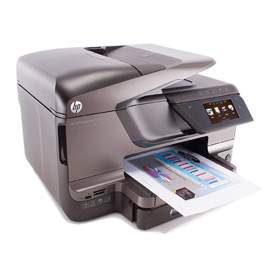
How to Buy a Business Printer

How to Buy a Business Printer


Of all the ways you can slice and dice printers into categories, the most significant distinction is between printers meant for the home and those meant for the office. Here are the key questions to ask as they apply to office printers.

Do you need a single-function printer or an multifunction printer (MFP)?

Consider whether you'd rather have separate devices for faxing, copying, scanning, and printing versus a single machine that does it all. At a minimum, an MFP combines a printer and scanner and works as a copier as well. For an office MFP, you'll probably want one that also works as a standalone fax machine. Advantages of MFPs include cost and space savings, as well as integration of some features.

On the other hand, single-function printers are optimized for certain tasks that your business may require. Laser printers for general office use are usually faster than comparably priced MFPs. Photo and graphic arts studios will certainly want a high-end photo printer, and probably a single-function scanner as well. Road warriors may also want to get a portable scanner, for scanning business cards or receipts while away from the office. Of course, buying a specialized device doesn't preclude you from getting an MFP as well.

If you decide you want an MFP, you might also want to look for an e-mail feature, which is potentially more useful than faxing. Most often, that means the AIO will launch an e-mail message on your PC and attach a scanned document. Some AIOs can e-mail scanned documents directly, however, and a few offer both choices.

Finally, if you are getting an MFP, you should demand an automatic document feeder (ADF) so that you can fax, copy, scan, or e-mail multipage documents with minimal work. ADFs also generally handle legal-size pages, even if the flatbed is limited to letter size.

Do you really need color?

If you never print anything but letters and monochrome documents, there's no reason to spend money on color. When considering whether you need color, though, keep in mind that many color lasers can print at high-enough quality to let you produce your own advertising handouts and trifold brochures. If you tend to print only a few hundred copies of this sort of output at a time, doing it yourself can save substantial amounts of money compared with printing small quantities at your local print shop.

How big a printer are you comfortable with?

Just because something is called a desktop printer doesn't mean it's small enough that you'd want it on your desk. Even a printer with a small footprint can be tall enough for you to feel as if it's towering over you. Be sure to check out the size.

How are you going to connect?

Most printers designed for the office include both USB and Ethernet ports, but you may prefer a wireless connection, particularly in a home office. Keep in mind, though, that if you have a wireless access point on your network, you can print wirelessly from your computer to any printer on that network, whether the printer itself offers a wireless connection or not.

What level of output quality do you need?

Printers vary significantly in output quality. Check out text, graphics, and photos separately, since high quality for one kind of output doesn't necessarily mean high quality for the others.

For office use, you probably want the kind of crisp, clean edges for text and line graphics that you can only get from a laser printer. But consider also whether you need graphics and photos that are merely good enough for internal business use, or whether you need high-enough quality to print your own marketing materials.

How much speed do you need?

If almost everything you print is one or two pages, you probably don't need a fast printer. But if you print a lot of longer documents, speed is more important. In that case, be sure you're judging speed by actual throughput. Most importantly, note that you can't compare claimed speeds for inkjets with claimed speeds for lasers. As a rule, laser printers will be close to their claimed speeds for text documents, which don't need much processing time. Inkjets often claim faster speeds than more expensive lasers, but don't live up to the claims.

How much do you print?

Figure out how much you print by how often you buy paper and in what amounts. Then pick a printer designed to print at least that much.

Unfortunately, this isn't as simple as it could be. Contrary to what most people think, a printer's maximum monthly duty cycle isn't the maximum you should be printing. It's the maximum you can print without damaging the printer. Some manufacturers state a recommended maximum in addition to a maximum duty cycle. For those that don't, you can follow the (very rough) rule of thumb of picking a printer whose maximum duty cycle is at least three times the number of pages you print per month.

Also consider input capacity. The rule of thumb here is to pick a printer with enough capacity to let you add paper no more than once a week.

There are other paper-handling issues, too: Check the minimum and maximum paper size. And if you need to print on both sides even occasionally, make sure the printer has an automatic duplexer. (Many small-business printers, even light-duty models, now include one as a standard feature.) Keep in mind, too, that the more people are in your office, the more you may benefit from things like a stacker or sorter, to keep the print jobs separate from each other. Also consider whether you can benefit from a finisher to handle things like stapling and hole punching.

How much does it cost?

Finally, be sure to check out the running cost and total cost of ownership. Most vendors will tell you the cost per page. To get the total cost of ownership, multiply the cost per page by the number of pages you print per year, then multiply that by the number of years you expect to own the printer, and add the initial cost of the printer. Compare these totals for any printers you're considering, and you may well find that you'll save money in the long run by buying the more expensive printer. Once you're armed with that information, you're ready to pick the best choice for your office.

How to Buy a Printer

How to Buy a Printer


Picking the right printer can be tough, with so many variations in features, and individual printers with almost any possible combination of those variations available. Here are some questions to help you home in on both the right type of printer, and the right printer within that type.

What Category of Printer Do You Need?


The three most useful ways to categorize printers are by purpose (general or special), intended use (home or office), and technology. Define your needs by all three categories, and you're well on you way to finding the right printer.

Most printers—including most inkjets that manufacturers market as photo printers—are general-purpose printers, meant for printing text, graphics, and photos. Special-purpose printers include portable printers, dedicated and near-dedicated photo printers, and label printers. If you're looking for a printer to print, say, photos, consider whether you want to print only photos or want a printer that can print other kinds of output also.

General-purpose printers tend to focus on photos if they're intended for home use or on text if they're intended for the office. An increasing number of multifunction printers (MFPs) are meant for the dual role of home and office printer (particularly for home offices), but generally favor one role over the other. Consider how you plan to use the printer, and pick a printer designed for that role.

The two most common technologies—laser and inkjet—increasingly overlap in capabilities, but there are still differences. The most important are that all lasers (and laser-class printers such as solid ink and LED-based printers) print higher-quality text than any inkjet, and almost any inkjet prints higher-quality photos than the overwhelming majority of lasers. Ask yourself whether text or photos are more important, and pick a technology accordingly.

Do You Need a Single-Function Printer or an MFP?


Consider whether you simply need to print or need something more. For a photo printer, for example, additional capability could be enough memory to store hundreds of photos, so you can bring the printer with you, show your photos, and then print them. (For more possibilities, see our Photo Printer Buying Guide.)

For a general-purpose printer, additional capability means choosing an MFP, also known as an all-in-one or AIO. Additional functions include some combination of scanning, copying, faxing from your PC, standalone faxing, and scanning to e-mail. Office printers also typically add an automatic document feeder (ADF) to scan, copy, and/or fax multi-page documents and legal-size pages.

Some MFPs offer additional printing options as well. Web-enabled printers, both home and office models, can connect directly to the Internet via WiFi to access and print out selected content without needing to work through a computer. Some models let you e-mail documents to the printer, which will then print them out.

Do You Really Need Color?


For a home printer, you probably need color, but for an office printer, if you never print anything but letters and monochrome documents, there's no reason to spend money on color. Keep in mind, however, that many color lasers can print at high enough quality to print your own advertising handouts and trifold brochures, which could save you money compared with printing small quantities at your local print shop.

How Big a Printer Are You Comfortable With?


Be sure to look into the printer's size. Even some home printers can be uncomfortably large to share a desk with, and even a printer with a small footprint can be tall enough to feel like it's towering over you.

How Are You Going to Connect?


In addition to a USB port, most office printers and an increasing number of home printers include Ethernet ports, so you can share the printer easily. Many also include WiFi capability. Even if they don't, keep in mind that if you have a wireless access point on your network, you can print wirelessly to any printer on that network, whether the printer itself offers a wireless connection or not.

What Level of Output Quality Do You Need?


Printers vary significantly in output quality. Check out text, graphics, and photos separately, since high quality for one kind of output doesn't necessarily mean high quality for the others.

How Much Speed Do You Need?


If almost everything you print is one or two pages, you probably don't need a fast printer. If you print a lot of longer documents, speed is more important, which means you probably want a laser printer. As a rule, laser printers will be close to their claimed speeds for text documents, which don't need much processing time. Inkjets often claim faster speeds than more expensive lasers, but very seldom live up to the claims.

How Much Do You Print?


If you print only a few pages a day, you don't have to worry about how much a printer is designed to print—as defined by its recommended (not maximum) monthly duty cycle. If you print enough for the duty cycle to matter, however, don't buy a printer that doesn't include that information in its specifications. Figure out how much you print by how often you buy paper and in what amounts. Then pick a printer designed to print at least that much. (For more details on duty cycle, take a look at our Office Printers Buying Guide.)

Also consider minimum and maximum paper size and whether you need a duplexer to print on both sides of the page. For input capacity, a useful rule of thumb is to get enough capacity so you should need to add paper no more than once a week.

How Much Does It Cost?


Finally, be sure to check out the total cost of ownership. Most manufacturers will tell you the cost per page, and many give a cost per photo. To get the total cost of ownership, calculate the cost per year for each kind of output (monochrome, color document, photo) by multiplying the cost per page for that kind of output by the number of those pages you print per year. Add the three amounts together to get the total cost per year. Then multiply that by the number of years you expect to own the printer, and add the initial cost of the printer. Compare the total cost of ownership figures between printers to find out which printer will be cheapest in the long run.

6 Benefits of upgrading your operating system

6 Benefits of upgrading your operating system

 Whether you use Windows or Mac, there are a variety of reasons why an upgrade could boost the performance of your computer. New versions of operating systems are released on a regular basis to eliminate bugs, incorporate improvements and user friendly features, and these can assist performance by enhancing software and hardware compatibility. Generally, your system should work faster and more smoothly. It’s not always an easy process to upgrade your operating system so do use professional computer support services if you have any doubts.

1. Software Compatibility
New versions of software – such as games, office packages, utilities and other software you may use may not be designed for older operating systems. This usually means you won’t be able to install these older programs on your computer at all. Software compatibility can also contribute to speed and stability, making your computer less prone to slowing down or crashing.

2. Hardware Compatibility
New hardware components and computer peripherals are being released all the time. This means operating systems have to keep up with these new hardware types. For example, with the introduction of Windows XP, there was no more need to manually load and install drivers for USB devices, which was required for older versions of Windows.
Similarly, the latest Windows versions, such as Windows 7, automatically detects wireless devices and installs drivers for them without the user having to find and install the driver from a download or CD. Like software compatibility, hardware compatibility makes your computer run more smoothly even when you have a lot of additional hardware or periperals.

3. Better Speeds
Manufacturers know that computer users are looking for better speeds with the same hardware, and so speed is a huge selling point for operating systems. Newer releases will tend to improve operating speeds and cut down processing lag times. Of course your hardware will make a difference but at a general level, newer operating systems tend to bring more effective speeds and capacity for users. Boot and shut down times tend to be much faster too.

4. User Friendliness
Compared to older platforms, you’ll notice that the latest versions tend to be the most user friendly. Menus are laid out in an intuitive and accessible way, and the interface tends to be more attractive. Other than the aesthetic factors, the ease of use will save time and help you adapt to the new system faster.

5. Bugs
Operating systems are updated with free software patches on a regular basis, and as a result, they tend to be less bug prone. Your data and software will run more smoothly and tend to be more secure against unwanted intrusions, such as viruses and worms that are designed to steal your private information. Another factor to consider is that computer software programs cease their operating system updates after a number years so if you’re using a very old version, you won’t be able to access software patches as they will no longer be produced.

6. Stability
In the earliest days of the PC revolution, computers ‘freezing’ or crashing was a common occurrence. This is an indication of how much operating system and software quality has improved in just the past decade.

Newer operating systems do provide higher levels of stability. As the manufacturer has incorporated so much past knowledge about bugs into newer versions, your computer is less prone to crashing, much smarter, and much more stable than before.

In summary, whether you choose to upgrade your system or not is a personal choice. Upgrades can be complicated so it’s best to seek the advice ofcomputer repair professional for a smooth transition to your new system.

How to deal with your computer slowing down

How to deal with your computer slowing down

 There are a number of simple reasons why your computer is slowing down and you can fix them or investigate yourself before calling for computer support. Many people think that their computer is slowing down because it is old, and this is not really the case. Let’s look at some of the situations and reasons why it could be happening.

Surfing the Internet. As you surf the Internet a lot, you will accumulate a lot of information inside your temporary Internet files. If this amount gets too large, it will be taking up space on your computer and you will find that your computer is slowing down, especially if you have been downloading a lot of programs or other data. This can be the first way to slow your computer down. Regularly cleaning your computer through the system tools will solve this problem fast. After deleting old files you will see rapid improvement in your laptop or computer.

Upgrading Your System. Let’s say your laptop was designed for Windows 2000, but you have now installed Windows 7. The newer system is much heavier and intricate than the older system, and as your computer is not designed for it, you will probably find that your computer is much slower. Newer systems require newer computers with more processing power. This is one way that the manufacturers of operating systems force us to upgrade our computers. Your computer is not slowing down because of age, it is slowing down because it has a newer version of the operating system on it.

Virus or Malware. If you are not protected, and even sometime if you are, you will still be looking for computer repairs because your computer has become infected. Some malware and other sneaky programs that entered your computer without your knowledge are getting up to activities that you are not aware of. Therefore, your computer is doing more than you think behind your back. This can cause your computer to slow down.

Lots of Files. Sometimes your computer will use your hard-drive to boost the amount of memory the processor is using, if you do not have much space on your computer, this will not allow the free space on the hard-drive to be used, and your computer will slow down. It is a good idea to keep a reasonable amount of space on your hard-drive, around 20%.

More Files. If you have been saving and doing a lot of work on your computer, even if you have deleted old files, the files are still all on your hard-drive in a messy way. This means a lot of going back and forth to read information for your computer. ‘Defragging’ is when you use the system tools to tidy up your hard-drive, so that information is stored uniformly and makes it easy and faster for your computer to locate it. You should check this regularly as your computer will tell you if it is necessary or not.

Messy System. Even though you have un-installed programs correctly and done everything you should when installing software, there will always be some glitches. There will also be files left around on your system registry. The system registry is like the complicated gears of your operating system engine. If it is messy, it will slow your computer down. You need to get specific software to clean this up or you can do it manually if you know a lot about computers. Even a messy desktop with a lot of items on it will slow your computer down!

If all else fails and you are concerned about your registry, viruses and malware, re-installing your system from scratch and reformatting your hard-drive is the simplest way to know your computer is in the shape that you bought it in. Remember there is rarely anything that will go wrong with your hardware, and the worst case scenario is that you have to put a new hard-drive in.

How to Buy a Cell Phone

How to Buy a Cell Phone

How to Buy a Cell PhoneThere's no sense in denying it: For most of us, mobile phones are at the center of our universe. It's your phone, your messaging device, your on-the-go Web browser, your camera, your music player, your GPS navigation unit—and soon, with NFC technology, it could even be your wallet.

If you thought choosing a cell phone was difficult before, it's even tougher today. That's a good thing, though, because it demonstrates how innovation in the wireless industry has skyrocketed. We're seeing rapid progress across all fronts, including displays, data networks, user interfaces, voice quality, third-party apps, and even mobile gaming.

To cite just a few examples: All four major U.S. carriers now offer some variation of 4G networks, which (depending on the carrier and technology used) is anywhere from two to 10 times faster than 3G. The latest crop of Android smartphones is more diverse and powerful than ever; Android is also far and away the sales leader in the U.S. when it comes to smartphones, a result few could have predicted just two years ago. Apple's game-changing iPhone 4S —itself a technological marvel—is available on Verizon Wireless and Sprint in addition to AT&T, opening up access to another 150 million customers. Standard "feature" phones (handsets without app-based ecosystems) are beginning to fade in importance and sales are trending downward.

Taken together, these massive changes make much of the old advice about choosing a phone obsolete. So let's throw it all away and start over. The topic has become so important, and involves so many decisions, that we scrapped our existing cell phone and smartphone buying guides in favor of a single comprehensive story—the one you're reading right now.

So what should you be looking for when buying a cell phone? Here are some key points to consider:

First, Choose a Carrier

Despite all the recent hardware and mobile software innovation, your wireless service provider remains your most important decision. No matter which device you buy, it's a doorstop unless you have solid wireless coverage. Maybe you have friends and family on the same carrier that you talk to for free, and you don't want that to change with your next phone. Maybe you're lusting after a certain device—say, a 4G LTE-capable Android phone, or an unlocked smartphone for international travel. And of course, you want to choose a carrier that offers fair prices, and provides the best coverage in your area. These are all good reasons to put the carrier decision first.

We have two major features to help you choose a carrier. For our Readers' Choice Awards, more than 10,000 PCMag.com readers told us which carrier they prefer based on coverage, call quality, device selection, and other factors. And for our 2011 Fastest Mobile Networks feature, we sent drivers to 21 U.S. cities to scope out which smartphone carriers have the best data coverage. Because each of the national carriers sells a wide variety of phones, choosing your service provider should be your first move. Here's a quick rundown of what each one offers:

AT&T boasts nationwide coverage and a terrific selection of phones, particularly for texting. It has dramatically improved its service quality in the Northeast over the past two years, and is now powering up its 4G LTE network for the first time. It's also the worst-rated carrier by our readers. Sprint is relatively inexpensive, and offers some neat media services and a solid high-speed network. It also has the most open approach to third-party apps, letting its subscribers add a wide range of Java applications to its feature phones. Sprint has two prepaid brands, Virgin Mobile and Boost Mobile, that sell phones without contracts.

T-Mobile offers mostly cutting-edge phones at relatively low monthly rates and enjoys a reputation for good customer service. It's the only carrier that offers a monthly discount in exchange for paying full price for your phone up front. But its network can be weaker than the other major carriers' in suburban and rural areas. Verizon Wireless is famed for its top-notch network quality and good customer service. Its prices can be higher than the competition, but when it comes to voice quality, Verizon phones often excel. That makes Verizon a perpetual leader in our Readers' Choice Awards. Verizon also currently has the largest 4G LTE network in the U.S.

There are also smaller, regional carriers. U.S. Cellular is only available in about half the country, yet it consistently gets great scores on our Readers' Choice Awards because of its strong commitment to customer service. Last year the carrier launched the "Belief Project," a new customer-service plan offering perks like free battery swaps and replacements for damaged phones. Meanwhile, Cricket and MetroPCS are "unlimited" carriers that offer much lower rates than their competitors and don't require contracts. But they aren't available everywhere, and have a somewhat limited, mostly lower-end selection of phones.

Finally, you may also see unlocked phones on the market that work with GSM networks such as AT&T and T-Mobile, but that carriers don't sell directly. These handsets are often imports. Because they're generally more expensive than carrier-approved-and-subsidized phones, few are sold in the U.S. But you can find a few bargains, such as the affordable Sony Ericsson Naite , in case your AT&T or T-Mobile phone breaks and you need a replacement.

Do I Need a Smartphone?

As more people become accustomed to instant email, Web, music, and messaging access at all times of the day, regardless of where they are, smartphones have become almost indispensible. That said, there's plenty of variety out there—not to mention devotees of specific OS platforms. That makes sense, though; sometimes, a platform's user interface or app selection just speaks to you, and that's all there is to it. With that in mind, and at the risk of attracting flames, let's break it down as well as we can for those who aren't so fully vested.

Right now, Google's Android and Apple's iOS are the two top smartphone platforms, both in U.S. sales and in availability of third-party apps. The iPhone has the best app store, the smoothest user interface (which some people don't like, but many do), and the best media features. But the iPhone limits you to AT&T, Sprint, or Verizon, and Apple's tightly controlled ecosystem can feel stifling to some. Android sales have now surpassed the iPhone by a significant margin; you can buy Android phones on seven U.S. carriers, and there are plenty of Android handset choices. At the time of this writing, AT&T was offering more than 20 Android phones. Many come with rich features like high-speed 4G Internet connectivity, fast dual-core processors, 4-inch (or larger) hi-res screens, and free GPS navigation. Also, Android's open-source nature makes it a tweaker's dream. But it also means fragmented third-party app compatibility, occasional bugs, carrier-installed bloatware you can't remove, and scattered, often sporadic OS updates.

Don't get us wrong: There are other solid smartphone platforms. But there are issues with each. BlackBerrys still command significant (if declining) U.S. market share and work as well as ever, but RIM's star is fading as attention shifts away from email and enterprise-managed devices. Microsoft's Windows Phone 7.5 is surprisingly polished and easy to use, but Microsoft hasn't sold many units, even after a year on the market. Nokia still does well outside of the U.S., but sales are nearly non-existent here, and now the company is in the middle of a complex transition to Windows Phone 7. HP canned webOS earlier this year, so that one's out of the picture.

Perhaps most importantly, none of these other platforms have nearly the same level of third-party app support as iOS or Android. For many folks, apps are the primary reason to get a smartphone. Apple's App Store leads with more than 500,000 apps that are put through a rigorous quality check process. The iPhone also plays the best games. Android Market is catching up quickly, though. Many independent developers like the freedom Android Market offers, as Apple can put the kibosh on whatever app category it feels like (such as vintage game console emulators), but not all apps run on all Android phones; there are so many phone models that maintaining quality control is tough. Other smartphone OSes can run apps, but there are much fewer available, and usually don't match their iPhone or Android counterparts in sheer power.

Regardless of your thoughts on platforms, form factor is also important. Touch screens allow for slimmer devices, smoother user interfaces, easy Web browsing, and a quality video-playback experience. And thanks to a lack of hardware buttons, third-party app developers can design their dream control schemes without worrying about differences in button layouts. But for some, typing on a touch screen can be a drag. Hardware QWERTY keyboards are easier to type quickly on, and are still ideal for many messaging fiends. But hardware keyboards either add bulk, in the case of horizontal and vertical sliders, or they reduce screen real estate, in the case of BlackBerry-like slabs. A few oddball designs tilt upwards like the Nokia E7 .

Texting and Voice Phones

In the age of mobile apps, smartphones get all the buzz these days, but roughly half of the cell phones sold in the U.S. are feature phones including camera phones, music phones, waterproof phones, texting phones, or just plain voice phones. There are still reasons to get a simpler, less-expensive device. And it's not just about being a Luddite. Maybe you want to save on the device itself and reduce monthly fees by avoiding a smartphone's $20-$30 data package, or you just don't want to be tethered to the Internet all the time.

Unlike smartphones, feature phones are a matter of "what you see is what you get." They don't receive magical software upgrades or run thousands of additional apps. (Some feature phones come with "app stores," but don't be fooled: These exist primarily to sell you additional-cost services, as well as ringtones, wallpaper, and basic games.)

Because even feature phones do almost everything, you should decide what capabilities you need or want most. Start narrowing down your choices by first ranking the five major categories of features in order of importance: voice quality and related capabilities; messaging; camera and camcorder; media playback; and Web, GPS, and other features. Once that's done, you'll be able to concentrate on a more narrow selection of feature phones. If you're big on text messaging, you want a phone with a  hardware QWERTY keyboard, plus an unlimited texting plan. If you've got a small child, a camera is probably important. If you want to ditch your iPod, keep an eye out for good media features.

For voice quality, read individual phone reviews. Wireless network coverage is always the biggest factor, but individual phones can vary in reception, earpiece quality, transmission quality through the microphone, and side-tone (the echo of your own voice that helps prevent you from yelling at the other person). A phone with middling to poor reception quality can be almost impossible to use in a marginal coverage area, while one with excellent reception can make the best of the little signal that's available. Another point to consider: Some phones have much louder speakerphones than others. A few have buggy Bluetooth stacks that make pairing with headsets and in-car hands-free stereos a pain.

The same advice I gave above about form factors also applies to feature phones. In this case, in addition to touch screens, sliders, and QWERTY slabs, you'll also have basic voice phones that are either candy-bar shaped with numeric keypads, or flip phones that open up to a larger, more comfortable numeric keypad. Flip phones have the added benefit of not needing a keyboard lock; close the phone, and you won't mistakenly dial someone while it's in your pocket. For the accident-prone, some phones, like Sprint's Kyocera DuraMax or the Casio G'zOne Ravine on Verizon Wireless, are even ruggedized or waterproof.

Cameras and Music Players

For a few years, feature phones with good cameras and music players flourished. But especially now that the iPhone and Android devices are popular, phone manufacturers across the board decided anyone who wants to take decent pictures or replace their iPod probably wants a smartphone.

That said, feature phone cameras can still satisfy casual users who just want snaps to post on Facebook or Twitter. Look for a phone with at least a 2-megapixel camera. Keep an eye on our reviews to see which phones take washed-out, compressed-looking photos and which take bright, clear shots. It's tougher to find a good video phone; we'd recommend a newer smartphone for this purpose. If you want to post your videos online or burn them to DVD, look for a handset that captures at least 640-by-480-pixel videos, at 30 frames per second or better. Many of today's higher-end smartphones offer 720p (1,280-by-720-pixel) or 1080p (1,920-by-1,080-pixel) high-definition recording; a few even offer image stabilization, which reduces jerkiness from unsteady hands.

For music, you want a phone with a 3.5-mm headphone jack, so you can listen to your songs with standard headphones. If you get a phone with a 2.5-mm jack, or even worse a proprietary one, you'll need a clumsy adapter to use quality headphones. As an alternative, look for a phone that supports stereo Bluetooth wireless headphones. Smartphones offer the most comprehensive music players. Apple iPhones work with iTunes, while the freeware doubleTwist does a great job of syncing both PCs and Macs with Android and some LG feature phones. Windows Phone 7 devices work with Zune software on both Macs and PCs, while BlackBerry Desktop Software syncs BlackBerrys to iTunes on either platform as well. Another option is iTunes Agent, an open-source app that lets you sync some feature phones with iTunes.

All About Pricing

Cell phones are more expensive than they appear. American wireless carriers subsidize the price of handets, in exchange for signing customers to binding two-year contracts. That's why you can get a phone like the powerful Motorola Atrix 2 for just $99 on AT&T, even though the phone's actual retail price is $549.

Still, amortize the up-front cost out over two years, and it pales in comparison to what you'll pay every month. Look at it in that light, and maybe it makes sense to splurge up front to get the awesome Samsung Galaxy S II Skyrocket or Apple iPhone 4S you really want, while maybe paring back your minutes or an extra feature or two to hold monthly costs in check. Unlocked phones lack subsidies and cost the most up front, sometimes well in excess of $500. But they let you swap in any AT&T or T-Mobile SIM card, as well as use any prepaid international cards that help you save big when traveling. Unlocked phones don't work on other American carriers, though.

There are also your monthly carrier fees. And this is where things gets tricky, as the carriers make it exceedingly difficult to figure out how much you'll actually pay per month. Verizon and AT&T plans tend to cost the most, but those two carriers have the best voice and data coverage in the nation. Sprint and T-Mobile offer considerable savings, especially on unlimited voice, data, and texting plans, but don't have quite the same level of network coverage.

Don't want to play the contract game at all? Go for a smaller carrier or even a prepaid phone. We're beginning to see prepaid smartphones appear everywhere, especially on smaller regional carriers like Cricket Wireless, MetroPCS, and U.S. Cellular. If you live in an appropriate coverage area and don't need a cutting-edge device, the potential savings can be huge. Even phones with contracts on the smaller carriers like MetroPCS can run as little as $40 or $50 per month, and that's with unlimited voice, data, and text messages, and no extra taxes or fees.

To get the best price, it pays to check a carrier's Web site before hitting a retail store outlet; often you can do better online, especially with instant rebates, and buying online is also more convenient. Amazon.com, Wirefly, and LetsTalk.com are all good online portals to compare pricing, though many of these will have mail-in rebates instead of instant rebates. Finally, you can grab a used phone off of eBay from the same carrier, and then activate it on your current plan.

Which Cell Phone to Get?

Well, that depends on the factors discussed above, but our recent phone roundups and top products lists are a good place to start your search:

The Best Cheap Cell Phones
The Best Unlocked Phones
The Best Android Phones
The Phones with the Best Battery Life
The Best Phones with Keyboards

For more phone reviews, news, and tips, check out the Cell Phones Product Guide.
 

How to Buy a Netbook

How to Buy a Netbook


The first batch of netbooks to hit the scene was greeted with awe and surprise. Those tiny laptops, which were once sold at a premium, could be had for half the price of a typical system seemed incredible. Since then, netbooks have taken a backseat to tablets, as the Apple iPad and countless "me-toos" have caused a lull in their production. Furthermore, full size laptops, which used to cost twice as much as netbooks, are now competing in this price range. But that doesn't mean demand for netbooks have fizzled out completely. Sure, the stakes have risen, and netbooks manufacturers are now vying for a spot in a very tight space, which is why the latest crop of netbooks have evolved to include more features, bigger screens and keyboards, and faster parts—all while slashing prices like a Walmart special.Related Story

 Also See Top 10 Best Netbooks


Even though new netbooks aren't launching at a torrid pace, like they were a year ago, the choices are still mind boggling. They're available from all sorts of household names, such as ASUS, Samsung, Sony, Toshiba, Dell, HP, and Lenovo. As a category, netbooks are such a diverse group that it's hard to come up with a single, all-encompassing definition. The best indicators that you're dealing with a netbook are a low price, light weight, and low-powered components. It's likely the system will have a screen on the smaller side and a basic feature set. Still, netbooks vary in screen size, typing experience, and specialty features. On the component side, AMD and Intel are silently going at it, though neither has launched any new chips in a while. Despite their current state, there are certainly enough netbooks that warrant further explanation. Luckily, this netbook buying guide does just that.

Larger Screens, Bigger Keyboards

It's generally easy enough to tell a netbook from other laptops, but to distinguish between systems, you'll need to do a little homework. In the past, screen sizes defaulted to 10-inches with 1,024-by-600 resolutions on almost every single netbook. These days, netbooks are breaking away from this trend. Oversized netbooks like the HP Pavilion dm1z and Lenovo ThinkPad X120e (Best Deal: $565.99 at Amazon Marketplace) are sold with 11.6-inch widescreens, while the Lenovo IdeaPad S12 (Ion) and the Asus EeePC 1215B are shipping with 12-inch ones. And their resolutions, as a result, are upped to HD-capable ones (1,366-by-768).

Once upon a time, full-sized keyboards were few and far between, but now they exist in netbooks as small as 10-inches. Case in point: The Toshiba mini NB305-N600 , Lenovo IdeaPad S10-3, and Acer Aspire One D260-1270 squeezed one in to their 10-inch frames. Since the vast majority of newer netbooks are launching with bigger screens (11-12-inches), a full size keyboard is guaranteed.

Usual Array of Features, Some Exceptions

Most netbooks provide an abundance of USB ports, Webcams, card readers, and built-in Wi-Fi. What they usually don't come with is an optical drive. Some, like the Lenovo IdeaPad S10-3t and Dell Inspiron Duo , are convertible tablets that have a touchscreen on a rotating hinge. Bluetooth is a frequently bundled feature in netbooks, while embedded 3G modems, which can use cellular signals to acquire broadband speeds, can be found in the HP Mini 5103 and Dell Inspiron Mini 10 (HD).

Atom Platform, Mostly

It used to be that the Intel Atom platform, made up of the Atom processor, integrated graphics, and memory (usually 1GB), was the most widely used in a netbook. Now AMD, with its latest Fusion APUs, has become a big presence in this space. Not only are AMD APUs faster any given Atom processor, but they're as battery efficient and have better graphics capabilities. You're also more likely to find 3GB-4GB memory configuration in AMD netbooks than from Intel ones. The AMD E-350 APU, for instance, can be found in the Lenovo Ideapad S205, Acer Aspire One 722-BZ480, and HP dm1z.

Intel is already into its fourth generation of Atom processors, the most recent of which are the 1.6GHz Intel Atom N455 and the 1.83GHz Intel Atom N475. These are single-core processors that have been updated with DDR3 memory support. The dual-core version—the 1.5GHz Intel Atom N550—can already be found in a handful of netbooks, and improves performance by up to 20% over the single-core Atoms, without impacting battery life.

What to Consider

Standard netbook batteries start with 3-cell (less than 30Wh) units, but many netbooks are now standardizing on 6-cell batteries. Our battery tests have shown that the smaller batteries will get you anywhere from 2 to 3 hours of battery life on a single charge, while the bigger ones range between 7 to 10 hours. If your activities include trips abroad and all-day classes, consider looking for netbooks that ship with 6-cell options. You'll also find two hard drive choices: solid-state drives (SSDs) and spinning hard drives. The consensus is that spinning drives offer the best gigabyte-per-dollar ratio, and most of them start with at least 250GB of storage space. While SSDs have faster transfer speeds, are durable, and have longer life spans, they command much higher premiums than their spinning counterparts. In an extreme case, upgrading to a 128GB SSD in the HP 5103 will cost you an additional $400, more than the entire price of our review system.

What You Can Do With Them

Don't underestimate the capabilities of these machines. Netbooks are not just limited to Web surfing, compiling spreadsheets, or word processing. You can offload your photos from a digital camera and edit them using a program like Adobe Photoshop Elements 9. With lots of patience, you can transcode video to another format using Windows Media Encoder 11 or edit video footage using Adobe Premiere Elements 9, or run your entire music library off of a program like Apple iTunes. A netbook can play video from sites like YouTube or a movie from an external USB drive, unmarred by distortions and lag. Businesses, too, are considering these pint-size laptops because you can run various e-mail clients, put them on a network, install a VPN client, and secure them with antivirus and antispyware suites.

At the price points we're seeing in the netbook market—namely $300 to $500—sex appeal isn't off limits either on a netbook. The HP 5103 has a sleek-looking aluminum frame, while the Toshiba NB305-N600 uses colors and textures in its favor. Though the future of netbooks remains a big question mark, what with the tablet boom and full size laptops that can be had for about the same price, the demand for them has not fizzled. There's a wide selection for those who want a pint-sized laptop that won't cost them an arm and a leg.

How to Buy a Laptop

How to Buy a Laptop


One size fits all? Just the opposite: If there's one thing that characterizes the laptop market, it's the array of sizes and styles to choose from—flyweights that barely tip the scale at 2.5 pounds, lap-crushing behemoths of 10 pounds or more, and everything in between. Indeed, venturing online or into an electronics store to pick a laptop can be an overwhelming experience if you're not prepared for all the choices and focused on your needs.

That's where this buying guide comes in. We'll brief you on the latest buzzwords and trends, help you decide which features matter most, and get you ready to buy the right portable for you, whether it's a super-slim ultrabook or heavy-duty desktop replacement.

The 14-Inch Dividing Line


You don't hear much about netbooks anymore, and you don't see the bare-bones minis with 10.6-inch (measured diagonally) screens, cramped keyboards, sluggish single-core processors, and a skimpy 1GB of RAM that defined the netbook category in, say, 2009. Apple's iPad and other tablets have horned in on their light-duty, Web surfing and occasional word processing territory.

But netbooks' enhanced successors are alive and well in the lower half of the ultraportable market, where 11.6-inch and 12.5-inch laptops with comfortable keyboards and relatively perky processing power such as the Lenovo ThinkPad X130e and HP Pavilion dm1-3010nr hold sway. These systems typically weigh between 3 and 3.5 pounds and often feature AMD APU (accelerated processing unit) chips that combine a CPU and GPU on the same die.

In the upper half of the ultraportable market are 12.5- and 13.3-inch laptops that usually rely on Intel Core processors. Some, like the 12.5-inch, 4.3-pound HP EliteBook 2560p (Best Deal: $1099.99 at TigerDirect) and 13.3-inch, 3.2-pound Toshiba Portege R835-P88 (Best Deal: $779.99 at TigerDirect), find room for onboard optical drives; some, like the 12.5-inch, 3.3-pound Lenovo ThinkPad X220 , don't. All offer full-sized keyboards and enough horsepower for desktop applications. Right now, the hottest part of the ultraportable segment falls under an Intel-trademarked term called ultrabook; more on ultrabooks in a minute.

Fourteen-inch laptops like the Lenovo IdeaPad U400 (Best Deal: $557.96 at CircuitCity.com) and Gateway ID47H07u (Best Deal: $549.97 at TigerDirect.com) are more or less the largest that get carried daily in briefcases and backpacks as opposed to mostly staying on desks. PCMag recommends 13.3- and 14-inch portables to frequent travelers and habitually refers to 15-inch and larger notebooks as desktop replacements (although jet-setters can find a few 15-inch systems, like the Sony VAIO VPC-SE23FX/S and Apple MacBook Pro 15-inch (late 2011) , that are thinner and lighter than most 14-inchers).

Whether they're bargains like Wal-Mart's Acer Aspire 5349-2635 $348.98 at Walmart.com or deluxe models like the Dell XPS 15z, 15.6-inch laptops are the classic desktop alternatives. Most weigh 5 to 7 pounds, with plenty of ports, full-sized keyboards with numeric keypads, and built-in DVD or Blu-ray drives.

The barely luggable 17- and 18-inch units above them range from mainstream models for users seeking a larger view, like the Toshiba Satellite P775D-S7144 (Best Deal: $679.00 at Buydig.com), to media centers for elite audio and video buffs, like the HP Envy 17, to monster gaming systems for hardcore players with heavy wallets, like the Alienware M18x . Such 7.5- to 12-pound systems often flaunt features such as dual hard drives, full HD (1080p or 1,920 by 1,080 resolution) displays, and the fastest mobile graphics adapters Nvidia or AMD can conjure up.

Rugged laptops like the Panasonic Toughbook CF-31 and Dell Latitude E6420 XFR (Best Deal: $5,043.00 at Dell SMB) are a category in themselves, overkill (and overpriced) for business travelers but designed to shrug off astonishing abuse such as drops, vibration, rain, and extreme temperatures for vertical markets such as police forces and utility crews. They're at the far end of a spectrum of sturdiness that includes so-called business-rugged machines such as Panasonic's Toughbook F9 and HP's EliteBooks, which aren't built for torture tests but can survive the bumps and scuffs of travel better than lowest-common-denominator laptops.

Translate


| Welcome To The Software & Games in World © 2009. All Rights Reserved | Template Style by My Blogger Tricks .com | Back To Top |